advanced twitter search
Mastering Advanced Twitter Search A Creator's Guide
Unlock X's full potential with this guide to advanced twitter search. Learn operators, filters, and strategies for content discovery and competitor research.

Feeling like you're just shouting into the X void? The main search bar gives you a tiny peek, but the real magic for creators and brands is tucked away in Advanced Search. Think of it as your personal intelligence tool for finding specific conversations, keeping tabs on your brand's reputation, and digging up killer content ideas before they go mainstream.
Why Advanced Search Is Your Secret Weapon
The standard X search bar is like a giant fishing net—it catches a lot, but most of it is junk you don't need. Advanced Search, on the other hand, is more like a high-tech fish finder. It helps you slice through the noise and zero in on the posts that actually matter to your brand or creative work.
This isn't just about digging up old tweets. It's about turning a chaotic, fast-moving stream of information into something you can actually use.
If you're serious about growing your presence on X, you have to master this tool. It's like having a free data analyst on call, helping you build a smarter content calendar, connect with your audience in a real way, and build a community that sticks around. And the best part? It’s a native feature that most people don't even know exists.
From Niche Feature to Essential Tool
X's search wasn't always this powerful. The company quietly launched its advanced feature way back in 2010, and for marketers and creators, it was a game-changer. By 2015, with the platform hitting 200 million daily users who were firing off 500 million posts every single day, the basic search bar was completely overwhelmed.
It didn't take long for business accounts to catch on. Soon, advanced queries made up over 25% of all their searches. The takeaway was clear: precise filtering had become non-negotiable.
This whole shift really drives home a key idea in social media: growth isn't just about what you post, it's about what you hear. Advanced Search is a cornerstone of modern social listening strategies, letting you:
- Monitor Brand Sentiment: See what people really think about your products or services, especially when they don't @ you.
- Discover Content Gaps: Find the questions people in your niche are asking that nobody is answering yet. Instant content ideas.
- Conduct Competitor Research: Peek at what’s working for your competition by filtering for their most-liked or most-retweeted content.
- Generate Leads: Find people who are actively looking for the exact solution you offer.
When you move past simple keyword searches, you stop yelling into a crowded room and start joining conversations that matter. That’s how you build a loyal following and a brand that people trust.
Connecting Search to a Larger Growth Strategy
The insights you pull from an advanced search are only as good as what you do with them. Once you've spotted a trend or found a content format that's crushing it, the next move is to weave that into your own strategy.
This is where things get really powerful—when you combine sharp search skills with solid analytics. You can find a complete walkthrough for measuring your results in our guide to understanding your Twitter account analytics. Ultimately, this whole process is about making decisions based on data, not just guesses, and turning your observations into a repeatable system for growth.
Building Your First Powerful Queries With Search Operators
Alright, let's get our hands dirty and move from theory to action. The real magic of X’s advanced search isn't a hidden menu; it’s the search operators. These are simple commands you type directly into the search bar to tell the platform exactly what you’re looking for.
Think of it like this: instead of just asking a librarian for "a book," you're giving them the author, the title, and the publication year. Operators give you that same level of precision, turning a vague search into a targeted mission.
Starting With the Essentials
Before we get too fancy, let's nail down the basics. These are the operators that form the foundation of almost every complex search you'll ever build.
Exact Phrases with Quotation Marks: If you search for
content marketing tips, you'll get a jumble of tweets with those words in any order. But wrap it in quotes—"content marketing tips"—and you only get posts containing that exact phrase. It’s a game-changer for finding specific quotes, article titles, or popular sayings.Excluding Keywords with a Minus Sign: Say you're digging for insights on social media strategy, but your results are flooded with job postings. Just add a minus sign. A quick search for
"social media" -jobsinstantly purges any tweet mentioning "jobs." Clean, simple, and effective.Broadening Searches with OR: People rarely use the exact same terminology. If you’re tracking conversations about the creator economy, some might say "influencer economy." A query like
(creator OR influencer) economycatches both, making sure you don’t miss out on half the discussion.
This is all about turning a messy, overwhelming feed into focused, usable information.
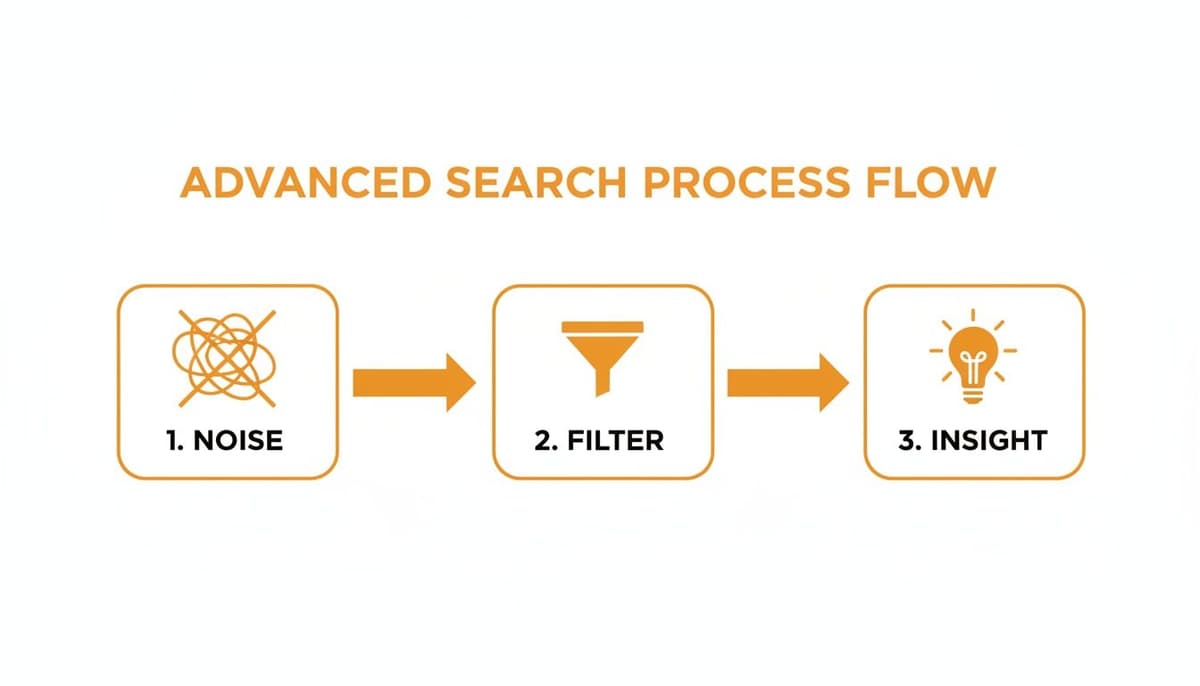
You start with the firehose of the main timeline, apply these filters to funnel it down, and what comes out the other end is pure insight.
Targeting Specific Accounts and Mentions
Once you've got a handle on keywords, the next step is zeroing in on specific users. This is where you can start doing some serious research on competitors, find key influencers, or just monitor conversations around your own brand.
For example, from:username shows you only tweets from that specific account. A search for from:elonmusk "AI" isolates every tweet from Elon Musk that contains the term "AI," which is incredibly useful if you want to see what a specific person is saying about a topic.
On the flip side, to:username lets you see replies directed at someone. I've used this to check what kind of questions customers are asking big brands. A simple search for to:HubSpot ? will surface a goldmine of public support questions directed at HubSpot. The @ symbol is similar, but it also pulls in general mentions, not just replies.
Pro Tip: String these together for some sneaky competitor analysis. A query like
to:competitor (frustrated OR issue OR broken)can instantly reveal a rival brand's unhappy customers. You'll quickly spot their pain points and maybe even find an opportunity to offer a better solution.
Filtering by Tweet Content Type
Let's be real—not all tweets are the same. Sometimes you need to find articles, and other times you're looking for video examples. This is where the filter: operator comes in handy.
Here are a few of my go-to content filters:
filter:links- This is your best friend for finding shared articles and resources. It shows only tweets containing a URL.filter:native_video- Want to see how others are using video? This finds tweets with video uploaded directly to X.filter:images- Perfect for digging into the visual strategies of other brands or creators in your niche.
Imagine you're a content creator looking for inspiration. A search for ("SEO tips") filter:links doesn't just find chatter about SEO; it finds the actual articles and guides people are sharing on the topic. It’s this combination of a keyword and an operator that delivers the hyper-relevant results a basic search could only dream of.
Finding Viral Content And Key Influencers With Engagement Filters
Keyword operators are great for homing in on specific conversations, but what if you want to find the conversations that really took off? This is where engagement filters come in. They’re your secret weapon for cutting through the noise and finding the posts that genuinely captured an audience's attention.
Instead of just searching for a topic, you can set a minimum threshold for likes, replies, and retweets. It’s like having a built-in virality detector, instantly surfacing content that has already proven its worth.
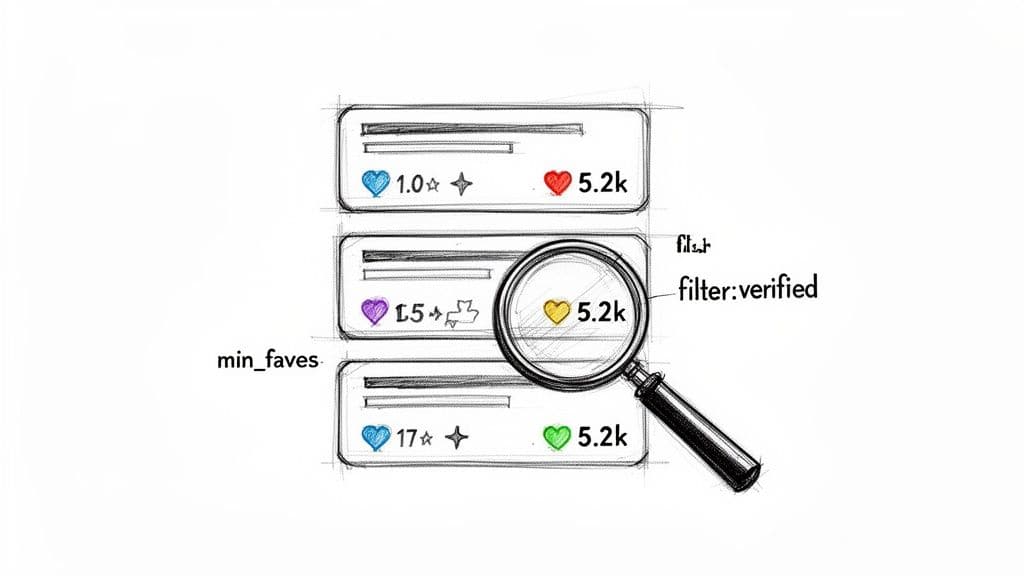
Honestly, this method is a massive time-saver. You stop guessing what might resonate and start analyzing a feed of content that has already won.
Setting Engagement Thresholds
There are three core operators that let you set a minimum number of interactions for a tweet to show up in your results. Think of them as your personal quality control filters.
min_faves:Finds tweets with at least a certain number of likes.min_retweets:Surfaces tweets with a specific minimum number of retweets.min_replies:Isolates tweets that have sparked a significant conversation.
Let’s say you’re looking for popular content about writing tools. A search for ("AI tools for writers") min_faves:500 will immediately show you the most-loved posts on that exact topic. This is a goldmine for understanding which formats, angles, and specific tools are generating the most buzz.
This data-driven approach is incredibly powerful. Did you know that by setting engagement thresholds in advanced Twitter search—like
min_replies:50ormin_faves:1000—you can unearth historically viral content that shapes entire strategies? One analysis revealed that tweets meeting these criteria averaged 15x higher impressions than average posts, with top results often exceeding 1 million views in niches like tech and fashion. Find out more about how engagement filters impact reach in this in-depth social media analysis.
Actionable Recipes for Content Discovery
Beyond just finding popular posts, you can combine these filters to achieve specific goals. This is where your X search skills really start to pay off.
Recipe 1: Find Evergreen "Best Of" Content Evergreen content is the gift that keeps on giving. To find it, I like to look for older posts that still have massive engagement numbers.
- Query:
("your industry keyword") until:2023-12-31 min_retweets:200 - Why it works: This query surfaces highly retweeted content from last year (or earlier), suggesting it has long-term value and isn't just a flash in the pan.
Recipe 2: Analyze Competitor Hits Want to see what's actually working for a competitor? You can isolate their biggest wins from the last few months to get a clear picture of their current strategy.
- Query:
from:competitor_username since:2024-01-01 min_faves:1000 - Why it works: This shows you their most-liked content from this year, revealing which of their messages and formats are resonating most strongly with their audience right now.
Uncovering Influential Voices
Engagement filters aren't just for content ideas. They’re also one of the best ways to identify the key influencers and creators who are driving conversations in your niche. After all, a high retweet count on a relevant topic is a pretty strong signal of authority.
You can take this a step further by layering in the filter:verified operator. This helps you focus on established accounts that X has recognized as authentic and notable. While not every influential person is verified, it’s a quick way to build a list of major players.
To find the right people, it helps to understand the different tiers of creators. Knowing what is a nanoinfluencer is versus a macro-influencer can help you tailor your engagement thresholds to find exactly who you’re looking for.
For instance, a query like (your industry keyword) filter:verified min_retweets:100 helps pinpoint verified accounts whose content consistently gets shared. These are the people setting the tone for conversations in your space. Once you find them, you have a ready-made list of potential collaborators and a much clearer picture of your target audience. You can dive deeper into this topic in our guide on how to find your target audience.
Using Date and Location Filters for Hyper-Targeted Insights
Beyond just keywords, the real magic of advanced search happens when you add context. Timing and location are two of the most powerful filters you can get your hands on, turning a broad search into a laser-focused intelligence mission. These operators let you become a digital time traveler and a local market expert, all from the same search bar.
When you use these filters well, you can isolate conversations with almost surgical precision. Imagine analyzing the buzz during a week-long product launch, monitoring real-time reactions to a live event, or even digging up sentiment from a campaign you ran two years ago.
This is what separates casual scrolling from strategic research. You’re no longer just looking at what people are saying; you’re understanding when and where they're saying it.
Becoming a Digital Time Traveler with Date Operators
The since: and until: operators are your keys to the past. They let you define a specific timeframe for your search results, which is absolutely crucial for things like campaign analysis and performance reviews. The format couldn't be simpler: YYYY-MM-DD.
Let's say your company hosted a virtual summit from June 5th to June 7th, 2024. You could build a query to capture all the important chatter within that exact window.
- Query:
(#YourConference since:2024-06-05 until:2024-06-07) - What it does: This pulls every public tweet using your event's hashtag, but—and this is the important part—only those posted during the event itself. This is perfect for pulling together a post-event report, gathering testimonials, or measuring overall impact without all the pre-event hype or late commentary muddying the waters.
The ability to rewind the conversation has fundamentally changed historical analysis on the platform. You can query
'#Bitcoin since:2017-01-01 until:2017-12-31 min_faves:1000'to capture the crypto boom that saw its value explode from $1,000 to $20,000. It's no surprise that 78% of social managers report usingsince:anduntil:operators weekly for campaign retrospectives, as they help uncover patterns that can boost engagement. Discover more insights about social media trends.
Pinpointing Local Conversations with Geographic Filters
While date filters give you control over time, geographic operators give you control over space. This is a game-changer for local businesses, event marketers, or anyone trying to understand regional market differences. The two main operators you'll use are near: and within:.
The near: operator lets you target a specific city, while within: sets a radius around that point in miles (mi) or kilometers (km). When you combine them, you basically create a virtual fence around your search.
This is a fantastic tool for local lead generation. A freelance graphic designer in New York could use it to find potential clients in their area who are actively looking for help.
- Query:
("looking for a graphic designer") near:"new york city" within:15mi - What it does: It finds anyone talking about needing a graphic designer within a 15-mile radius of NYC, instantly filtering out all the irrelevant global noise.
Combining Time and Location for Maximum Impact
The real power comes from stacking these operators. By combining date and location filters, you can answer incredibly specific questions that a basic search could never handle.
Imagine a coffee shop chain wanting to monitor feedback on a new summer drink, but only in the Chicago area and only during its launch week.
Here’s how you’d build that query, piece by piece:
- Keyword:
("new summer brew" OR @YourBrandCoffee) - Location:
near:"chicago" within:20mi - Date Range:
since:2024-07-01 until:2024-07-08
The final query: ("new summer brew" OR @YourBrandCoffee) near:"chicago" within:20mi since:2024-07-01 until:2024-07-08
This single, precise command delivers a clean, actionable list of local customer feedback from the exact launch period. It’s this ability to layer filters that elevates advanced search from a simple lookup tool into a serious market research machine.
Automating Your Workflow With Saved Searches
Crafting the perfect advanced search is a great first step, but the real magic happens when you make it repeatable. Manually plugging in those complex queries every single day just isn't a good use of your time. The power move here is to automate your intelligence gathering with Saved Searches.
This feature turns your best queries from a one-time task into a passive intelligence stream. Instead of constantly rebuilding your search, you can tap into a custom-filtered feed with a single click, making sure you never miss a critical conversation.
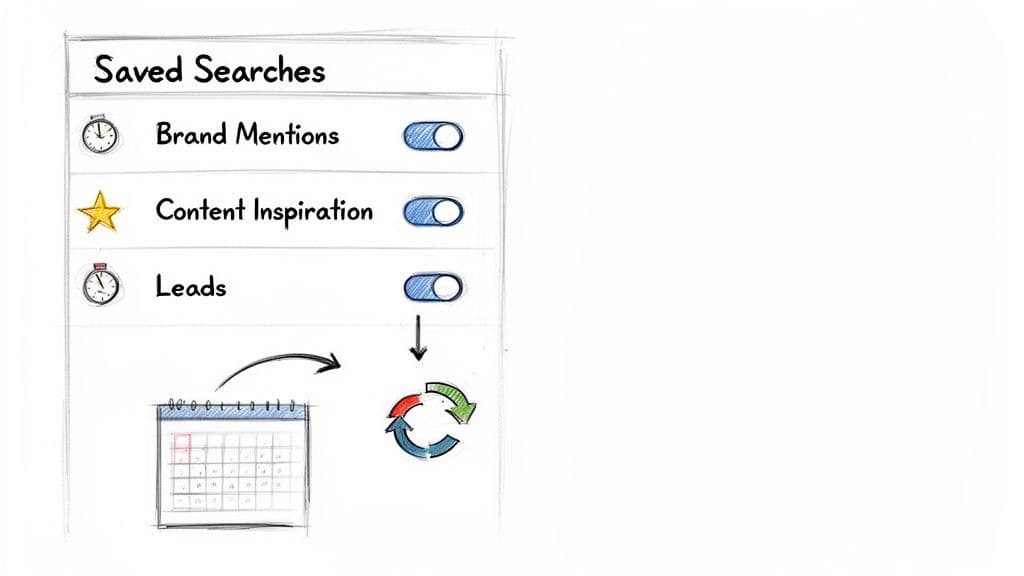
Think of it like creating your own custom X timelines, each one perfectly tailored to a specific goal. You can build dedicated feeds for everything from brand mentions and competitor activity to high-intent keywords that signal a potential new customer.
How to Save Your Advanced Search
Saving a search on X is dead simple once you know where to find the button. After you’ve run your masterpiece of a query, the option to save it is hiding in plain sight.
Here’s the quick rundown:
- Build your query using the operators and filters we've covered. Something like
("looking for a content writer") -job -hiring. - Run the search by hitting Enter.
- Find the three dots (
...) next to the search bar on the results page. - Click “Save Search.” That’s it. X will confirm it’s saved to your account.
You can get back to your saved searches anytime—just click the search bar, and they’ll appear in a list. Making this a habit can genuinely save you hours of redundant work every single week.
A saved search isn't just a bookmark; it’s an automated monitoring system. The whole point is to shift from a reactive workflow (where you’re always hunting for info) to a proactive one where curated insights are always waiting for you.
Organizing Your Saved Searches for Maximum Impact
Now, the key to making this actually work for you is organization. Don't just save a dozen random queries and call it a day. The goal is to build a structured library of searches that maps directly to your business goals. For creators and brands, this system becomes an absolute powerhouse for content discovery and reputation management.
Here are a few essential saved searches I think every creator or brand should have running:
- Brand Mentions: A query like
("YourBrand" OR @YourBrand) -from:YourBrandis brilliant for catching what people say about you when they forget to use your official handle. - Content Inspiration: Try saving a search like
(your_niche_keyword ?) min_replies:10. This creates a constant feed of popular questions your audience is actually asking. Instant inspiration. - Competitor Monitoring: A simple search for
from:Competitor1 OR from:Competitor2 filter:linkslets you keep a casual eye on the content and links your rivals are pushing. - High-Intent Leads: If you're a service provider, a query like
("can anyone recommend" "your service")effectively becomes an automated lead-gen machine.
Just by spending a few minutes each day scanning these curated feeds, you’ll stay ahead of trends, jump into relevant conversations, and spot opportunities you would have completely missed otherwise. It’s a small change in habit that delivers a massive strategic advantage.
Got Questions About Advanced X Search? You're Not Alone.
Even after you get the hang of the basic operators, trying to build more complex queries can bring up a few tricky questions. Let's walk through some of the most common ones I hear from creators and brands trying to master this powerful tool.
Can I Use These Advanced Operators On My Phone?
Yes, you absolutely can, but there's a slight catch.
The full-blown advanced search page—the one with all the nice input fields for dates, users, and engagement—is a desktop-only feature. However, every single operator we've discussed works perfectly when typed directly into the search bar on the mobile X app.
So, you can definitely run a search like from:username "keyword" min_faves:10 on your phone and get the exact same results. You just have to know the syntax by heart.
Here's my go-to workflow: I build and fine-tune complex queries on my desktop because it's just easier to see everything. Once I've got one dialed in, I hit "Save Search." That saved search then syncs to my mobile app, giving me one-tap access to a powerful, pre-built filter wherever I am.
Why Can't I Find a Tweet I Know Exists?
This is incredibly frustrating, but it happens. If your search is coming up empty, it's usually for one of a few reasons.
First, the search index on X is massive, but it isn't perfect. It prioritizes indexing recent content and tweets that get a lot of engagement. Very old tweets from accounts with little activity can sometimes be harder for the system to surface.
The most common reason, though, is privacy settings. If a user's account is private (meaning they've protected their tweets), nothing they post will ever show up in a public search. Period.
Finally, technical hiccups can play a part. With all the recent changes to X's API and backend, temporary indexing delays or glitches can pop up from time to time.
A Quick Troubleshooting Tip: If you're hitting a wall, start by simplifying your query. Remove one operator at a time to broaden the search. More often than not, the culprit is a simple typo in a username or a date range (
since:anduntil:). Double-check those first!
What's the Best Way to Find Potential Clients?
This is where advanced search really shines. The trick is to stop thinking about keywords and start thinking about intent. What would a person who needs your services actually type into that search bar?
Let's say you're a freelance web designer. You can build a killer lead-gen machine by targeting phrases that signal someone is actively looking for help.
- The Query:
("looking for a web designer" OR "can anyone recommend a web designer") -job -hiring -portfolio - Why It Works: It hones in on direct requests for your skills. Then, it uses negative keywords like
-joband-hiringto filter out all the noise from recruiters. I also like adding-portfolioto remove other designers who are just showing off their work.
You can take this a step further by adding a location filter like near:"london" to find local clients. Another fantastic, slightly sneaky strategy is to monitor your competitors' mentions for unhappy customers. A search like to:competitor (frustrated OR issue OR broken) can reveal a goldmine of opportunities to step in and offer a better solution.
How Do I Actually Weave This Into My Content Strategy?
Advanced search shouldn't be something you do once in a while; it should be the bedrock of your content research. It gives you a direct line into what your audience is talking about, what they're struggling with, and what kind of content they love.
Here are a few practical ways to make it part of your routine:
Find Proven Topics & Formats: Stop guessing what works. Use engagement filters to see what's already a hit in your niche. A search for
your_keyword min_retweets:100 filter:native_videoinstantly shows you the most-shared videos on that topic. Analyze them, and then create your own unique spin on a proven concept.Source Endless Content Ideas: Run a simple query like
your_keyword ? min_replies:10. This creates an instant feed of the most debated and interesting questions people in your community are asking. Each one is a potential idea for a detailed thread, a quick video, or even a full blog post.Become the Go-To Curator: You don't have to create everything from scratch. Set up a saved search for top-tier content in your field, like
("your industry") filter:links min_faves:50. This gives you a pre-vetted stream of valuable articles and resources to share, positioning you as a helpful expert.Join the Right Conversations: When you publish a new piece of content, don't just post and pray. Use your keywords to find active discussions already happening. Then, jump into the replies and add value, perhaps with a link back to your new post. It's a far more effective way to get eyes on your work.
By making these searches a regular habit, you shift from a content strategy based on guesswork to one built on real, timely data from your audience.
Ready to stop guessing and start growing? MicroPoster provides the unified content studio and automation tools you need to turn these advanced search insights into a powerful, consistent presence on X, Bluesky, and Mastodon. Publish smarter, faster, and more strategically across all the microblogging platforms that matter. Start your free 7-day trial of MicroPoster today.